Google Tag Manager
When integrating using Google Tag Manager (GTM) without changing the source code, you can implement the Metrix SDK on your website. To do this, first study the documentation related to the WebSDK, then return to this section.
In Google Tag Manager, there are three key definitions required for implementation:
Folder: Folders are used to organize and categorize Tags and Triggers.
Tag: All SDK-related codes are implemented within Tags. Their execution timing is determined by Triggers.
Trigger: Triggers define when Tags should be executed.
Creating the Metrix Folder
Using the Folders tab, create a folder named Metrix SDK.
While this step is not mandatory, it is highly recommended for properly organizing Tags and Triggers.
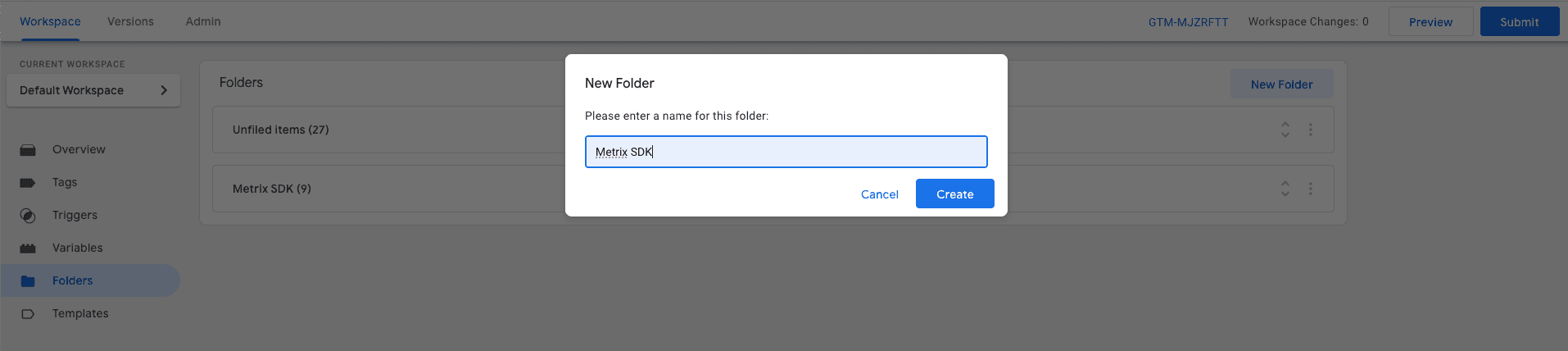
Now you can place the Tags and Triggers related to the SDK implementation inside this folder.
Adding the Metrix Script and Initializing It
To add the Metrix script to your website, you need to define a Tag.
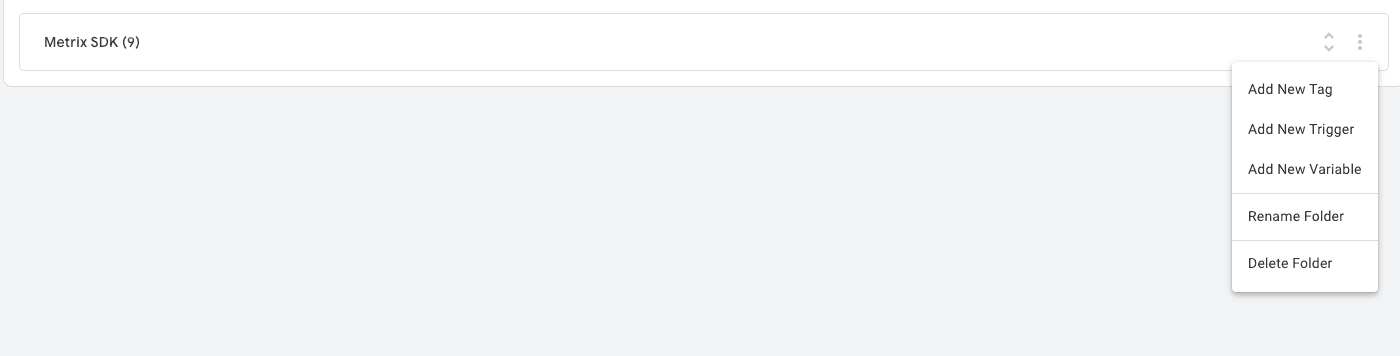
To do this, click on the three-dot icon next to the folder and select the Add New Tag option.
In the opened window, there are two sections named Tag Configuration and Triggering. In the Tag Configuration section, we will implement the JavaScript code related to the SDK.
By clicking on this section, a new window will open where we will select the tag type as Custom HTML.
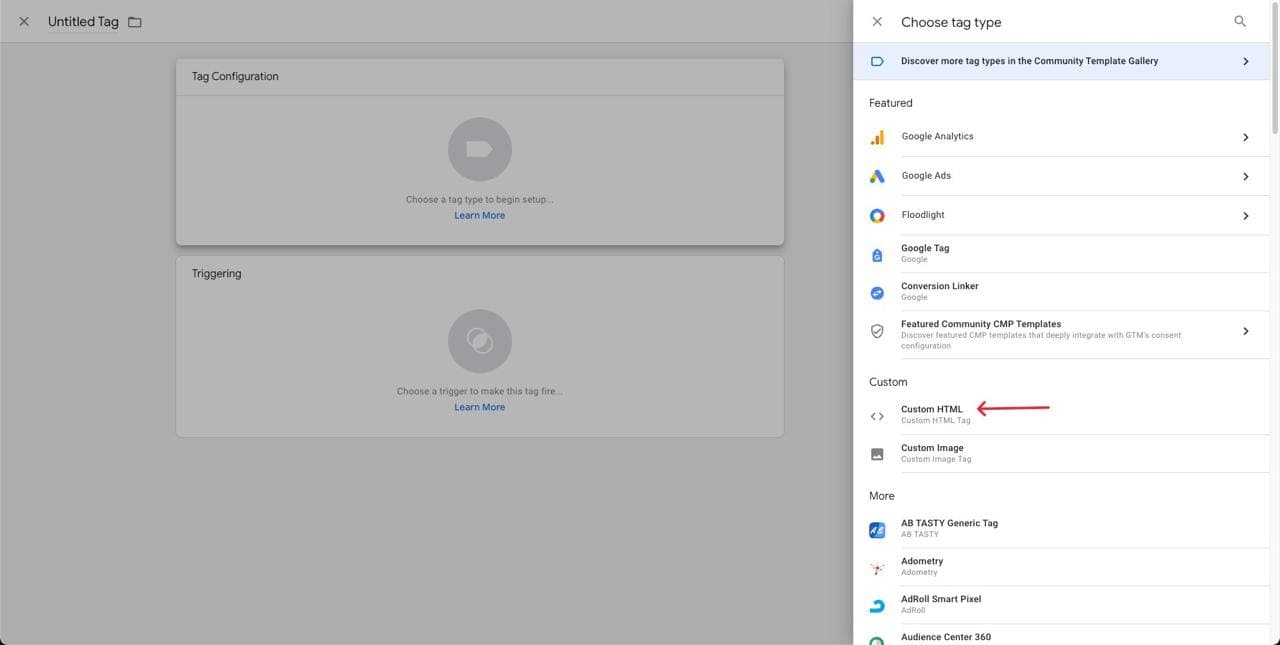
By selecting this option, Google Tag Manager provides an environment for implementing HTML and JavaScript code.
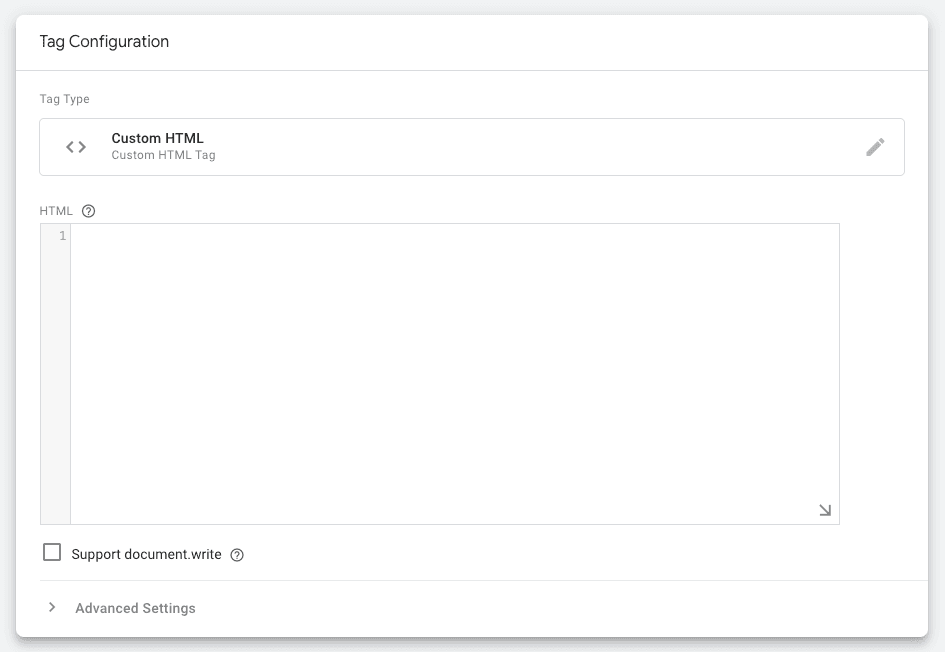
To add the Metrix script, first add the following line into this environment:
<script src="https://cdn.metrix.ir/sdk/web/metrix.umd-2.8.1.js"></script>To initialize the Metrix SDK, we initialize it within a separate script.
<script>
  var config = {} // Change and config based on your needs
  Metrix.init('YOUR_APP_ID', 'YOUR_API_KEY', config);
</script>
To execute this script, you also need to define a Trigger for it.
Therefore, by clicking on the Triggering section, you can either select a pre-existing Trigger or define a new one. If you need to define a new Trigger, click on the + icon to open the following window and define a new Trigger.
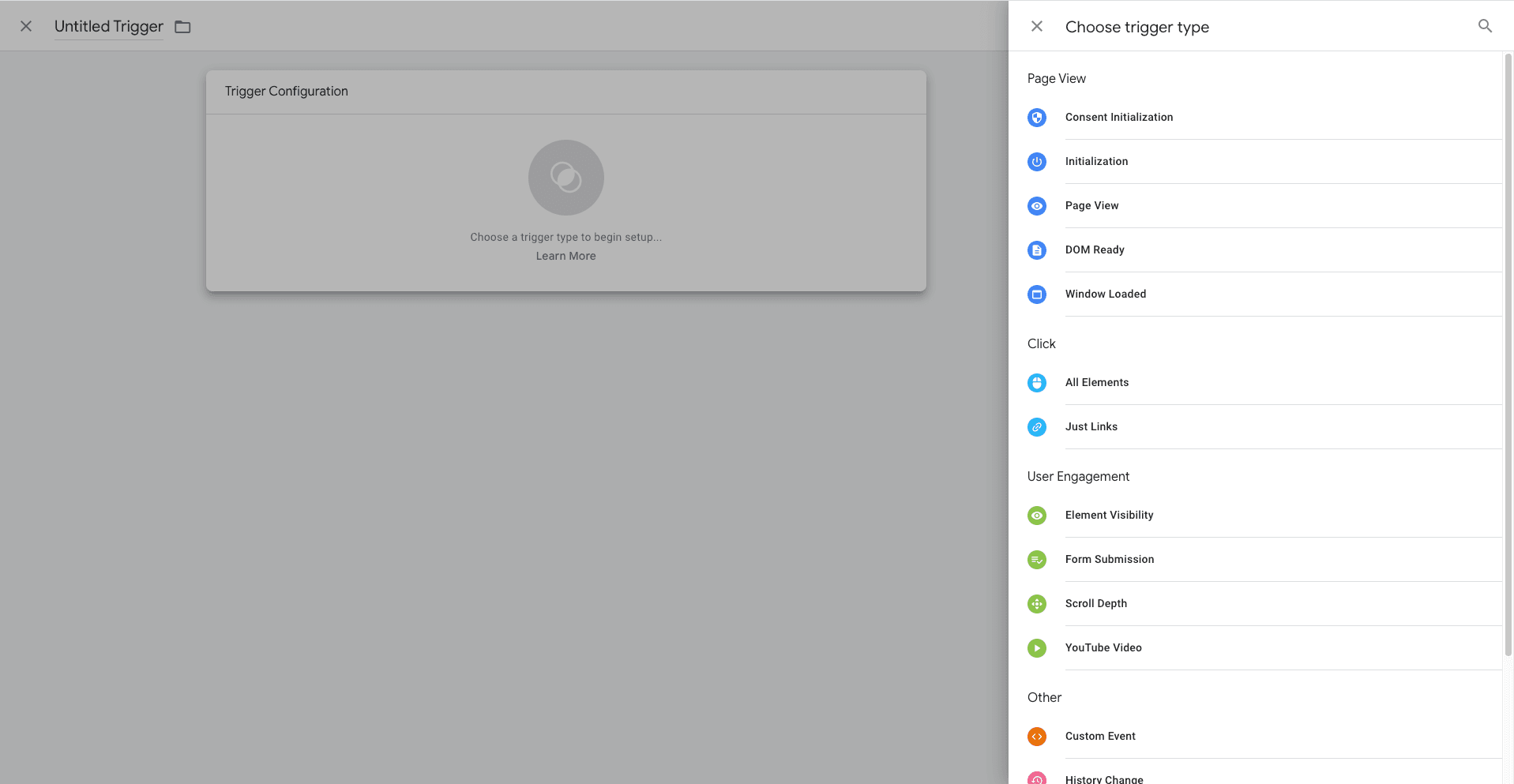
Google Tag Manager comes with several predefined Trigger Types.
For example, by selecting the Page View type under Page View, you can set this trigger to execute when all pages are viewed. Alternatively, through Trigger Configuration, you can apply filters to target specific pages.
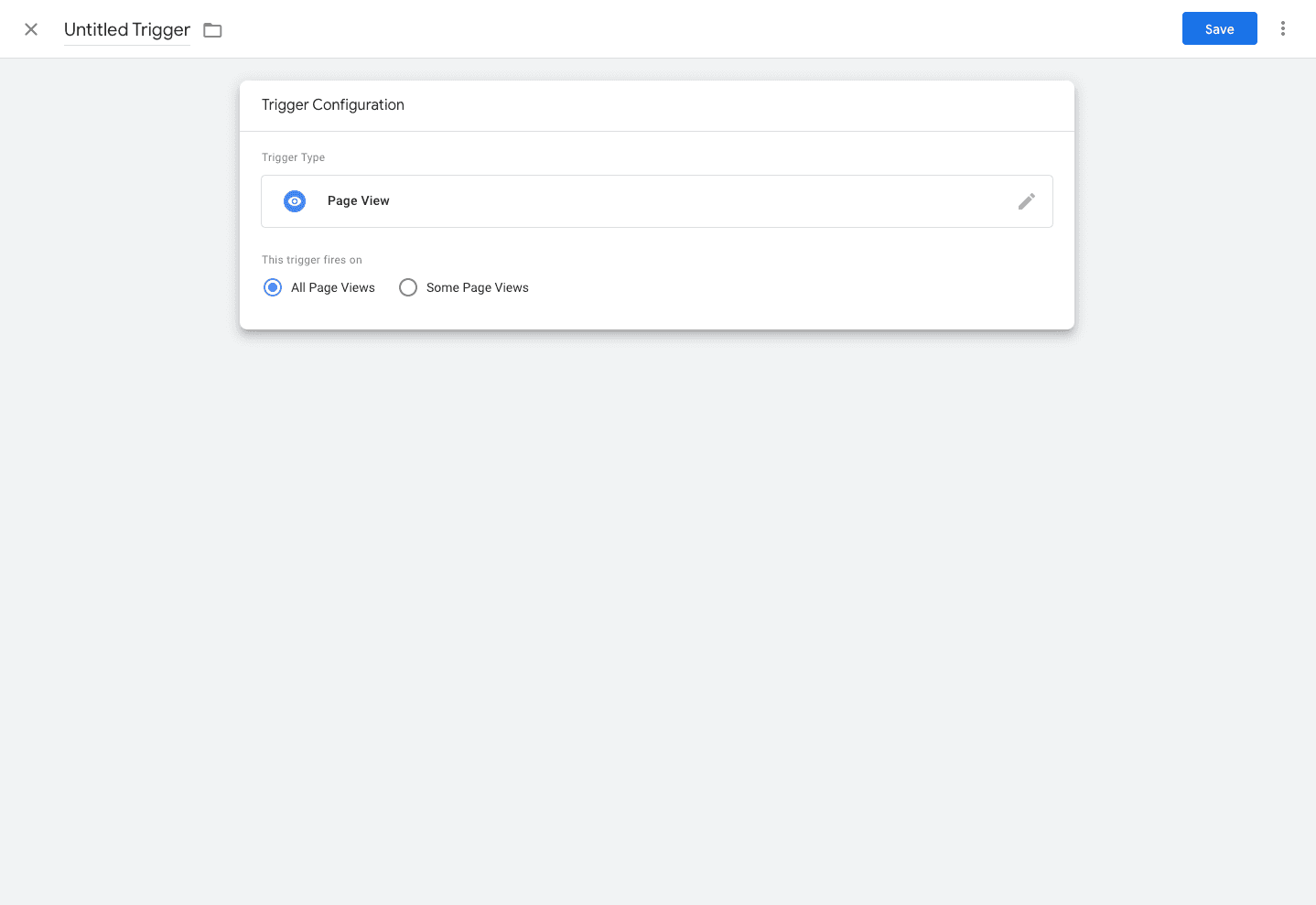
By saving this new Trigger, it will be selected as the Triggering for the defined tag.
Identifying Users to Metrix
According to this section of the web documentation, to identify a user using your website in Metrix, you need to authorize them.
For this purpose, you need to implement this part in a Tag and associate it with a Trigger.
It is important to note that this Trigger should be set for a time when you have access to the user’s information.
Therefore, define the Trigger in such a way that this information is available to you.
For example, the Tag could be implemented as follows:
<script>
  if (##USER_INFO_IS_PRESENT##) { // Check user info is present
    Metrix.authorizeUser(##USERNAME_OF_USER##); // Authorize user with its username
  }
</script>
Sending User Events
According to this section of the web documentation, to send user events, you need to define a new Tag as explained in the previous sections.
Depending on your requirements, you must define the appropriate Trigger for sending the event.
The Tag for sending the event can be implemented as follows:
<script>
  var customAttributes = {} // Change based on your custom attributes.
  Metrix.newEvent("YOUR_EVENT_SLUG", customAttributes);
</script>
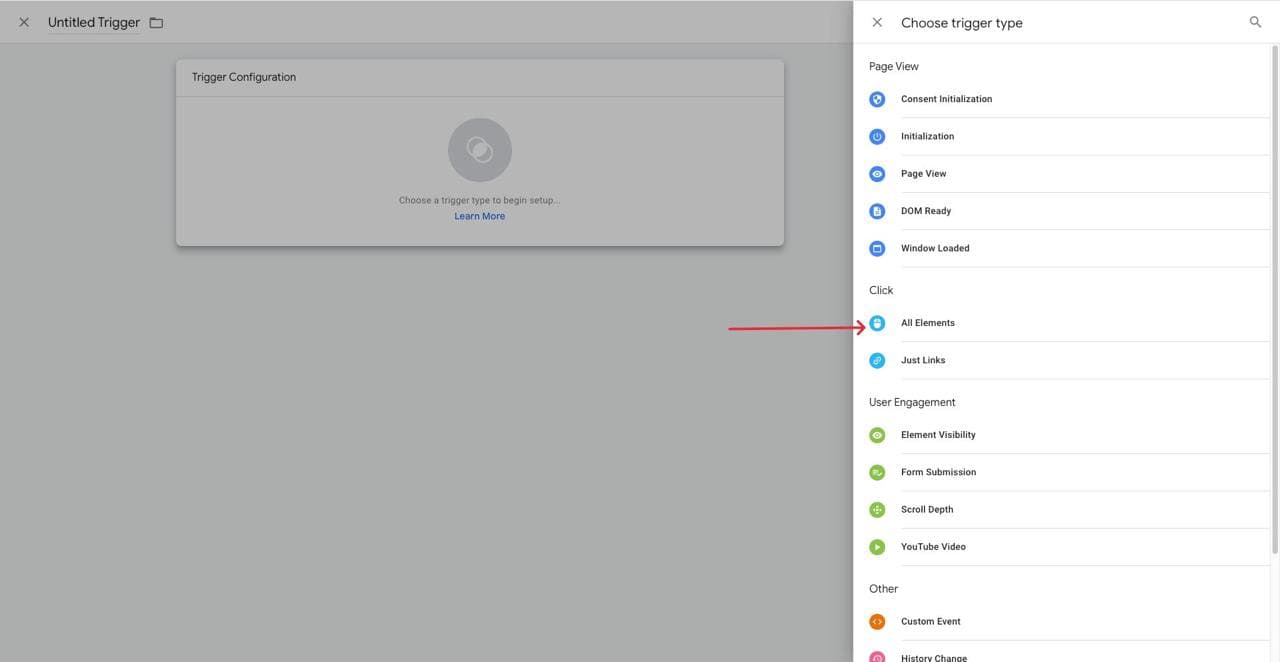
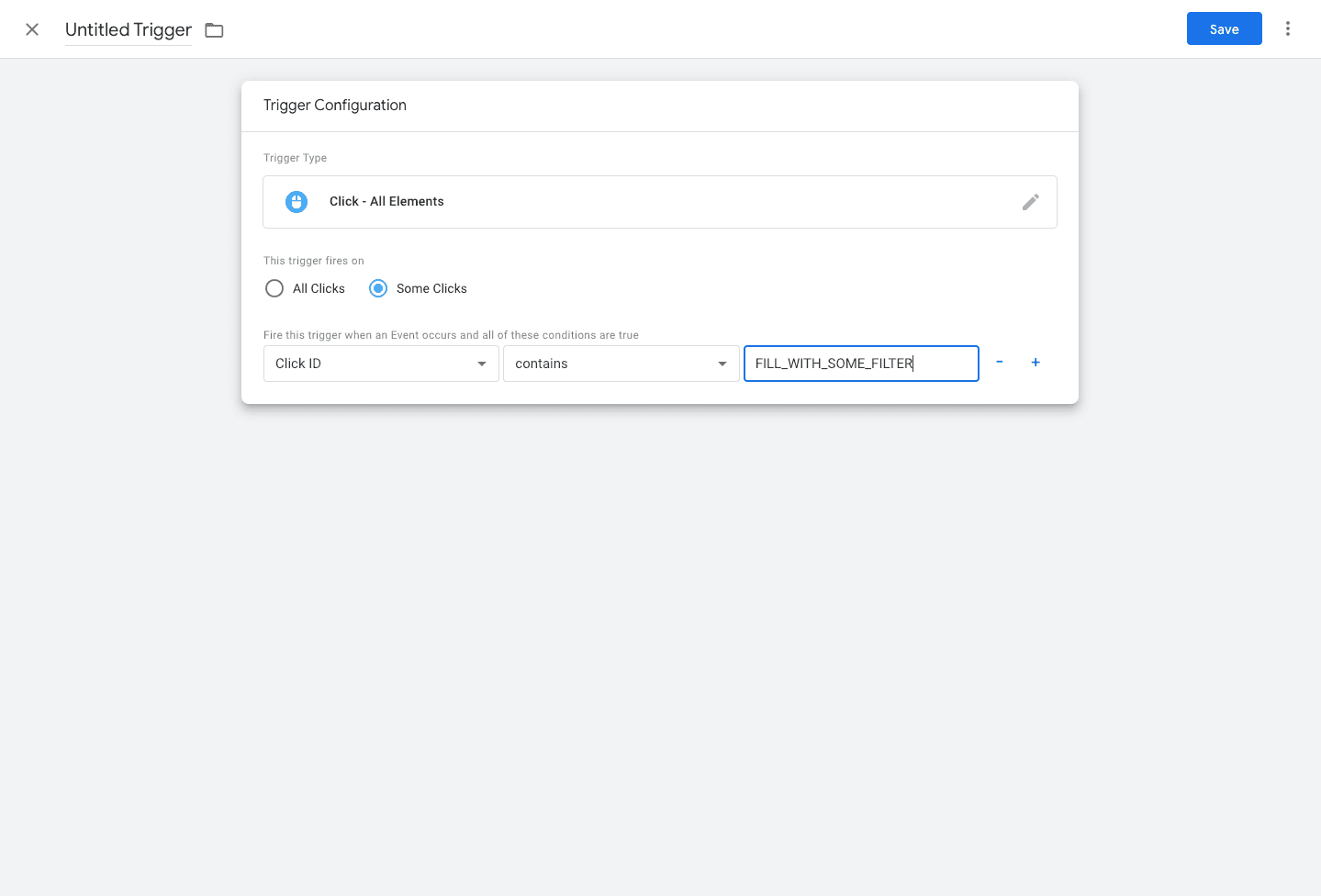
For example, this event could be triggered by clicking on a specific element with a defined ID. Therefore, the Trigger Type for this Tag should be set to Click, and any necessary filters should be applied as needed.
Or, in another example, if you need to send an event when a specific page is viewed, you should define the Trigger Type as Page View.
Enabling Web Push
Similar to this section in the web documentation, depending on the method you choose for obtaining push permission from the user, you may need to define a new Tag and Trigger or modify the configuration settings when initializing the SDK.
Returning the User to Anonymous State
When a user logs out of your website, you must return them to an anonymous state.
Therefore, you can achieve this by defining a trigger on the logout button and linking it to a tag containing the following script to return the user to an anonymous state.
<script>
  Metrix.deauthorizeUser()
</script>
Publishing Changes
After you have defined all the required tags and triggers and ensured their correctness, you need to publish these changes to make them available in the production environment.
Therefore, by clicking the Submit button, you will encounter the following window:
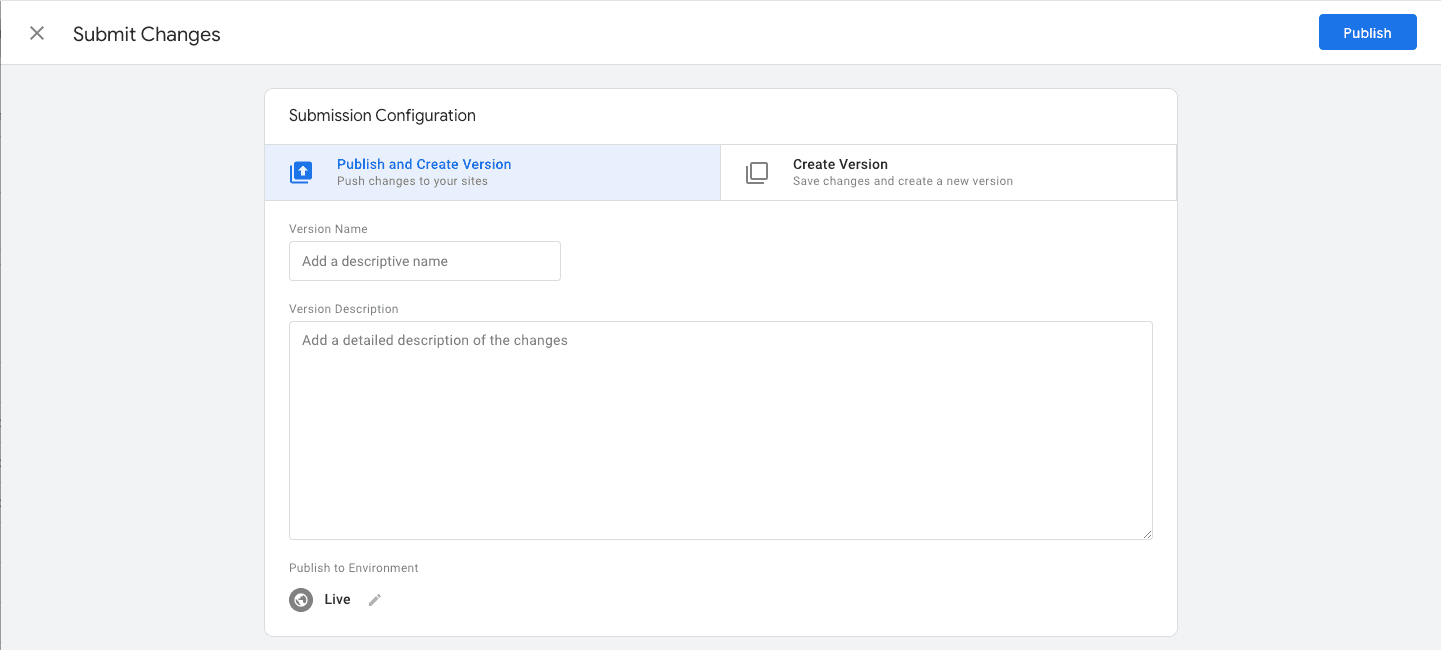
In this window, you can add a version name and description for your changes. After reviewing your configuration, click Publish to deploy your changes to the production environment.
Summary
With Google Tag Manager integration, you can implement Metrix SDK without modifying your source code. By following these steps, you can:
- Initialize the Metrix SDK with your credentials
- Identify users and track their activity
- Send custom events based on user interactions
- Enable web push notifications
- Manage user authentication state
For more detailed information about the WebSDK capabilities and configuration options, refer to the WebSDK documentation.